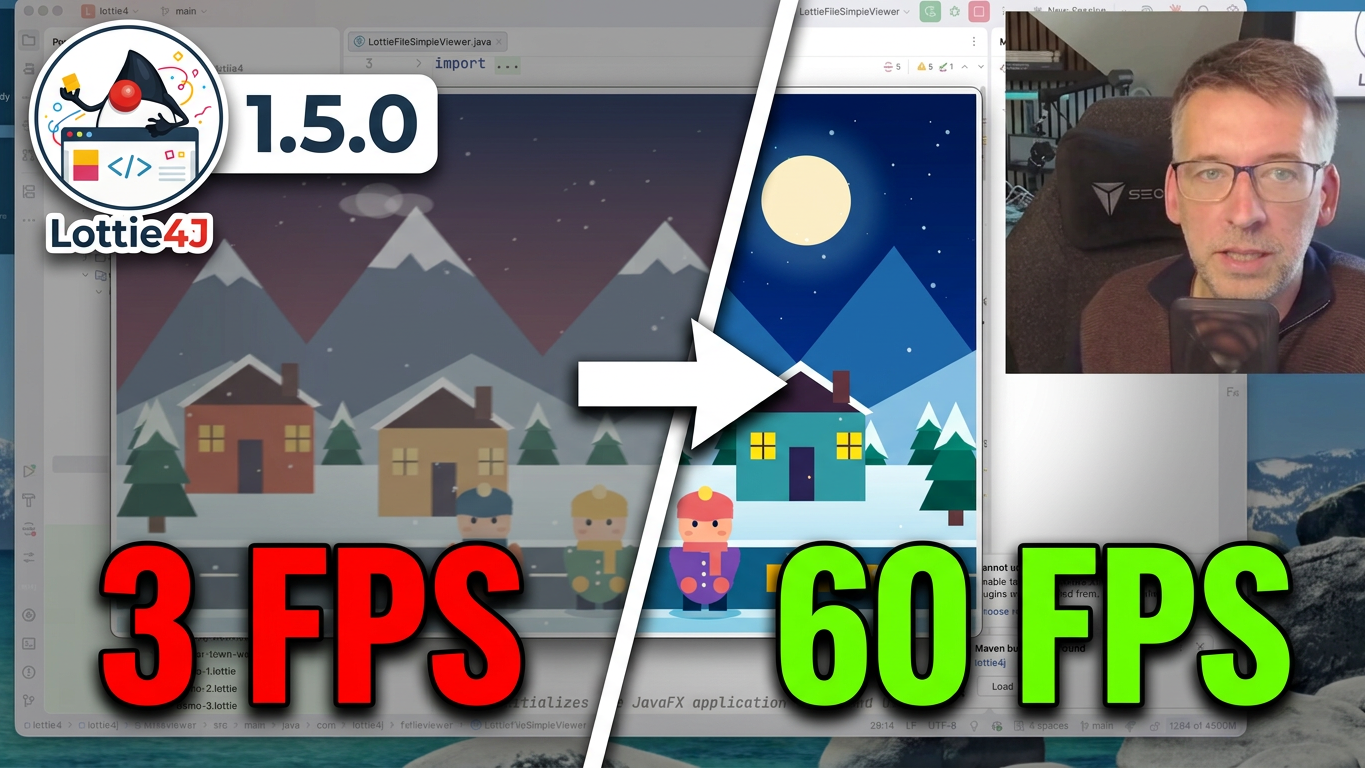
Lottie4J 1.5.0: From 3 to 60 Frames Per Second
Released yesterday: Lottie4J 1.5.0, the Java and JavaFX library to render Lottie animations. This release has no new file features and no API changes, it is all about speed. One of the test animations went from below 3 frames per second to a smooth 60.
Where Did This Come From?
While helping Dirk Lemmermann with the Lottie4J integration in AnimatorFX (see my previous post), I noticed that one of his animations played back extremely slow. The winter-town.json file is 1200x800 pixels, has 1200 frames and 348 layers, with one blur and one track matte. In the video you can see the frame counter hovering between 2 and 3 fps, and even some strange artifacts.
I asked my AI assistant to investigate, and together we found several improvements. The file is now part of the unit tests, so the similarity between the expected image and the Lottie4J output is checked on every build.
How to Measure
A window is capped by the refresh rate of your display, so just looking at the fps doesn’t tell you how much headroom you have. Therefore the measurements use the render time per frame, and the achievable fps (1000 divided by the average render time in ms). All numbers are from an Apple M2 Max with OpenJDK 27 and JavaFX 21.
Some tools were added to the project for this:
RenderStatsandRenderProfilercollect the per-frame and per-stage render times.- The file viewer has a new option
--bench=<seconds>which prints a summary. PlaybackBenchmarkTestrenders frames back to back without a window.
Step 1: Apply Opacity Directly
The profiler showed that about 95% of the 360.6 ms per frame went to 100 full-canvas off-screen snapshots, one for every layer with animated opacity. A layer with a single shape and one fill or stroke doesn’t need a buffer: global alpha does the same job.
Result: 360.6 ms to 7.2 ms per frame, from 2.8 to 138 achievable fps. Over ten compared frames only about 0.01% of the bytes differed, never by more than 2 out of 255.
Step 2: Smaller Track Mattes
For a track matte, a probe at 1/8 of the size finds the area that contains content. Only that area is snapshotted, composed and drawn, and an empty area skips the matte completely.
Result: 7.2 ms to 3.2 ms per frame, or 313 achievable fps. In total that is about 100 times faster than the starting point.
Step 3: A Harder File
The second test file, animated_background_patterns, has 134 layers and 14 track mattes at 1080x1080. It should play at 30 fps, but delivered only 18. For this one, a matte reuses the content area of the previous frame plus a margin. The prediction is checked against what is drawn, and a miss falls back to the probe. A fresh probe is forced every fourth frame and after a jump in the playback. In the benchmark 2819 predictions were used and only 4 missed.
Result: 45.8 ms to 34.9 ms per frame, from 21.8 to 28.7 achievable fps. The similarity with the reference renders of thorvg is unchanged.
What Didn’t Work
- Drawing the content and the matte side by side in one canvas was fast (28.6 ms), but
SequentialPlaybackTestfailed because the rounding of the rasterizer changed with the offset. A frame may never depend on the playback history. - Using one canvas for all mattes of a frame gave the same pixels, but was not faster. The cost is in rasterizing the content, not in the snapshot itself.
What’s Next?
animated_background_patterns is still just below 30 fps. Ideas to try: reusing the result of a matte when its content didn’t change, drawing soft mattes at a lower resolution, and cheaper probes. The full log is in BENCHMARK-LOG.md in the Lottie4J repository. There are also new contribution guidelines, so help is welcome!
Upgrading is recommended: the gains need no code changes. Let me know if you have remarks or animations which play too slow!
More Information
- Release page: lottie4j.com
- Full changelog: lottie4j.com/releases
- GitHub diff: 1.4.0 to 1.5.0